The Ultimate Guide to Multi-Monitor Setups: From Desktop Displays to AR Glasses

In the modern era of work, your "office" is no longer defined by a cubicle. Whether you are a creative professional needing immense screen real estate or a digital nomad working from a seaside cafe, the way you interact with your computer has evolved.
This guide will walk you through everything from the basics of how to connect two monitors to the cutting-edge world of screenless, portable workstations.
How to Connect Two Monitors
Setting up a multi-display environment is the fastest way to boost productivity. But before you start plugging things in, you need to understand the hardware.
HDMI vs. USB-C vs. DisplayPort
Understanding monitor cable types is crucial.
l HDMI: The most common standard. Almost every TV and monitor supports this.
l DisplayPort (DP): The gold standard for high refresh rates and daisy-chaining multiple monitors.
l USB-C / Thunderbolt: The modern choice. It can carry video, data, and power all through one cable, which is perfect for keeping a clean desk.
Dual Monitor Setup on Windows 11
Learning how to setup a dual screen monitor on Windows 11 is simpler than ever. Once the cables are connected, right-click your desktop and select Display Settings. Here, you can click "Extend these displays" so your mouse moves seamlessly from one screen to the other. You can also drag the virtual monitors in the menu to match their physical positions on your desk.
Triple & Quad Monitor Setups
For those who need a four monitor setup, you likely need a dedicated Graphics Card (GPU) with multiple outputs. If your PC lacks enough ports, you can use a "DisplayLink" docking station or a DisplayPort MST hub to split one signal into multiple distinct displays.
How to Use Split Screen on Windows
Having multiple monitors is great, but knowing how to use split screen on windows allows you to organize your work within those screens efficiently.
Snap Layouts & Keyboard Shortcuts
Windows 11 introduced Snap Layouts. Hover your mouse over the "maximize" button of any window to see a grid. Click a zone, and the window snaps perfectly into place.
l Pro Tip: Use Windows Key + Arrow Keys to snap windows instantly .
Split Screen Without a Built-in Laptop Screen?
If you are using a mini PC or a "headless" setup, you don't need a laptop screen to use split-screen features. Windows treats any connected display—whether it’s a portable monitor or AR glasses—as a canvas ready for snapping.
Choosing the Right Screen for Your Setup
Your choice of hardware depends on where you work. The ideal monitor screen size for a desk is usually 27 inches, but for travel, smaller is better.
Portable Monitor vs. Desktop Monitor
A portable monitor is a game-changer for travelers. These are ultra-slim, USB-C powered screens that fit in a laptop bag. While a desktop monitor offers better ergonomics, a portable one gives you a dual-screen experience in a coffee shop.
4K vs. 1080p — Do You Need It?
What is 4k resolution? It refers to a display with roughly 4,000 pixels horizontally (3840 x 2160). A 4k screen resolution provides four times the detail of standard 1080p. It is essential for video editors and coders who need to fit more text on the screen without it looking blurry.
Hotel TV as a Monitor? Yes, Really
When you travel, you don't always need to carry a screen. You can connect a TV to a laptop or pocket PC using a simple HDMI cable. If you’ve ever wondered, "How do I connect my TV to my laptop?" the answer is usually just one cable and hitting Windows + P to select "Extend."
The Screen-Free Lifestyle — A PC That Goes Where You Go
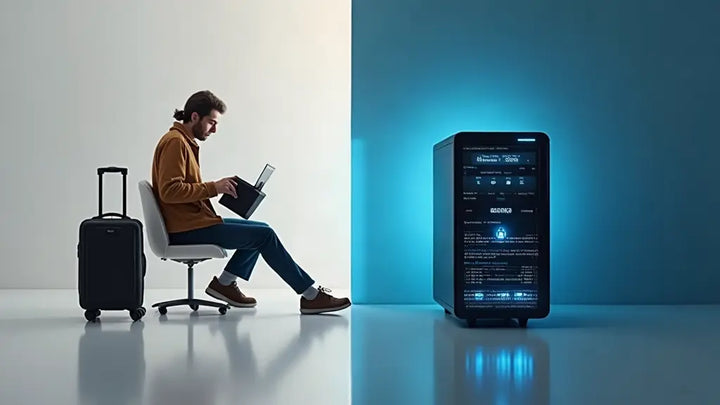
The newest trend in tech is the modular PC setup. Instead of a heavy laptop, people are opting for a "brain" (the PC) that is separate from the "eyes" (the screen).
A Pocket-Sized PC That Works with Any Display
A pocket PC or pocket computer is a fully functional Windows machine no larger than a smartphone. It doesn't have a built-in screen, which makes it a powerful portable computer that you can take anywhere.
Coffee Shop Monitor → Office. Hotel TV → Workstation.
With a travel PC, your environment dictates your screen. You can plug into a portable monitor at a cafe, a hotel TV in the evening, or a high-end desktop monitor at home. This makes it the ultimate desktop replacement for people who hate being tied to one spot.
No Built-in Screen = No Screen to Break
One major benefit of this work from home computer style is durability. Laptops often break at the hinge or the screen. A screenless modular PC is rugged and easy to pack, making it the most resilient portable office solution.
AR Glasses——A Screen Only You Can See
If you want a truly private, giant workstation that fits in your pocket, look no further than AR glasses.
Physical Privacy No Filter Can Match
When you wear AR glasses (Augmented Reality), the "screen" is projected directly into your eyes. People sitting next to you see nothing but a person wearing sunglasses, while you see a 100-inch virtual monitor floating in front of you.
Best AR Glasses for PC in 2026
As of 2026, brands like XREAL and Viture have perfected the "Spatial Workstation." These glasses connect via USB-C to your pocket PC, giving you a multi-monitor experience without a single physical screen on the table.
FAQ
1. Can I really use a hotel TV as my main monitor?
Yes! Most modern hotel TVs have HDMI ports. However, you may need to adjust the "Overscan" settings in your Intel/AMD/Nvidia control panel to make sure the taskbar isn't cut off.
2. How do I connect 2 monitors to a PC with only 1 HDMI port?
You can use a USB-to-HDMI adapter, a docking station, or, if your USB-C port supports "Alt-Mode," you can use a USB-C to Dual HDMI splitter.
3. Do AR glasses work as a real monitor replacement?
Absolutely. With current 2026 technology, the resolution is sharp enough for reading text and coding. They are the ultimate tool for a truly mobile, modular workstation.